Showing posts with label Deployment. Show all posts

Friday, December 14, 2012

AutoCAD LT 2013 Deployment

This information outlines the procedure for installing and configuring AutoCAD LT 2013 to use the Wolski CAD System.

Install AutoCAD LT 2013 

  • Install AutoCAD LT 2013 (with default settings)
  • Install latest AutoCAD LT 2013 Service pack

Set Workspace

(needs to be completed when new users log on to a workstation for the first time)
  • If you wish to disable the ribbon, press the Workspace switching button (lower right corner of screen). Set to AutoCAD LT Classic


Configure Wolski Paths

  • Start the Options command (Shortcut: OP)
  • Set to the File tab and set the following settings (in the support file search path getting the right order is important).

Import Palette Groups

  • Start AutoCAD LT 2013
  • Right Click on Tool Palette and select Customize Palettes...
Right Click in Palette Groups area and select Import...

  • Browse to T:\AutoCAD\Wolski2013\PaletteGroups and select Details.xpg (repeat this step and select Symbols.xpg)
  • Close Customize dialog box.
End of Document.


Friday, November 20, 2009

Bluebeam Deployment

Install Bluebeam PDF Revu
  • Install Bluebeam PDF Revu
Configure Bluebeam
  •  Start Bluebeam Administrator (Start button – All Programs – Bluebeam Software – Bluebeam Administrator
  • Go to Net Config tab and change the location of Text Stamps to T:\Bluebeam\Stamps

  • When prompted to Copy files select No Copy and then press OK

AutoCAD LT 2009 Deployment

Install AutoCAD LT 2009
  • Install AutoCAD LT 2009 (with default settings).
  • Install latest AutoCAD LT 2009 Service Pack (from Install folder or Autodesk Support webite)
Configure Wolski Tools
(needs to be completed when new users log on to a system for the first time).
  • If you wish to disable the ribbon, press the Workspace switching button (lower right corner of screen). Set to AutoCAD LT Classic.


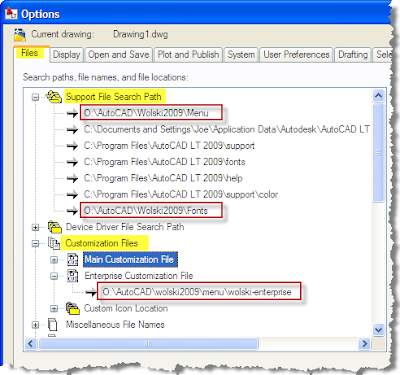
  • Start  the Options command (Shortcut: OP)
  • Set to the File tab and set the following settings (Important: In the support file search path getting the right order is critical).


  • Press Ok